1. General information
Product Code: LM-MSZ
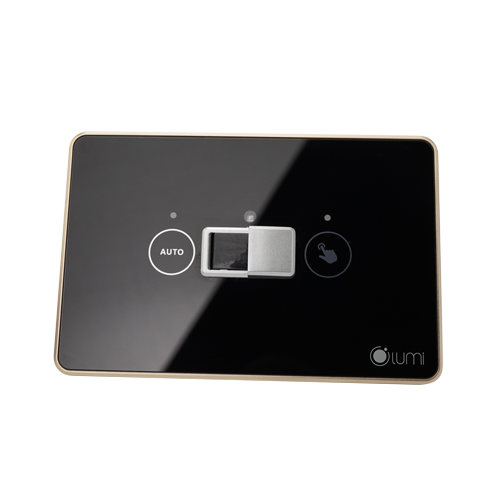
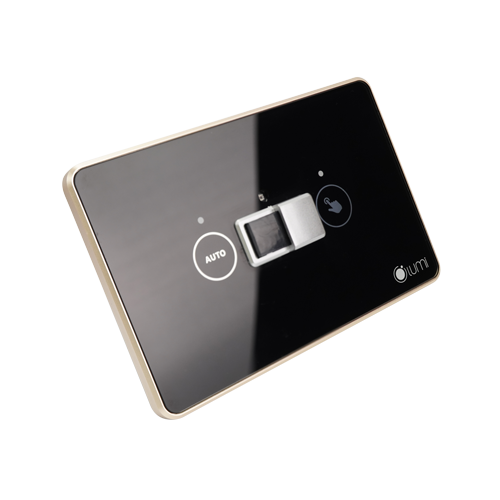
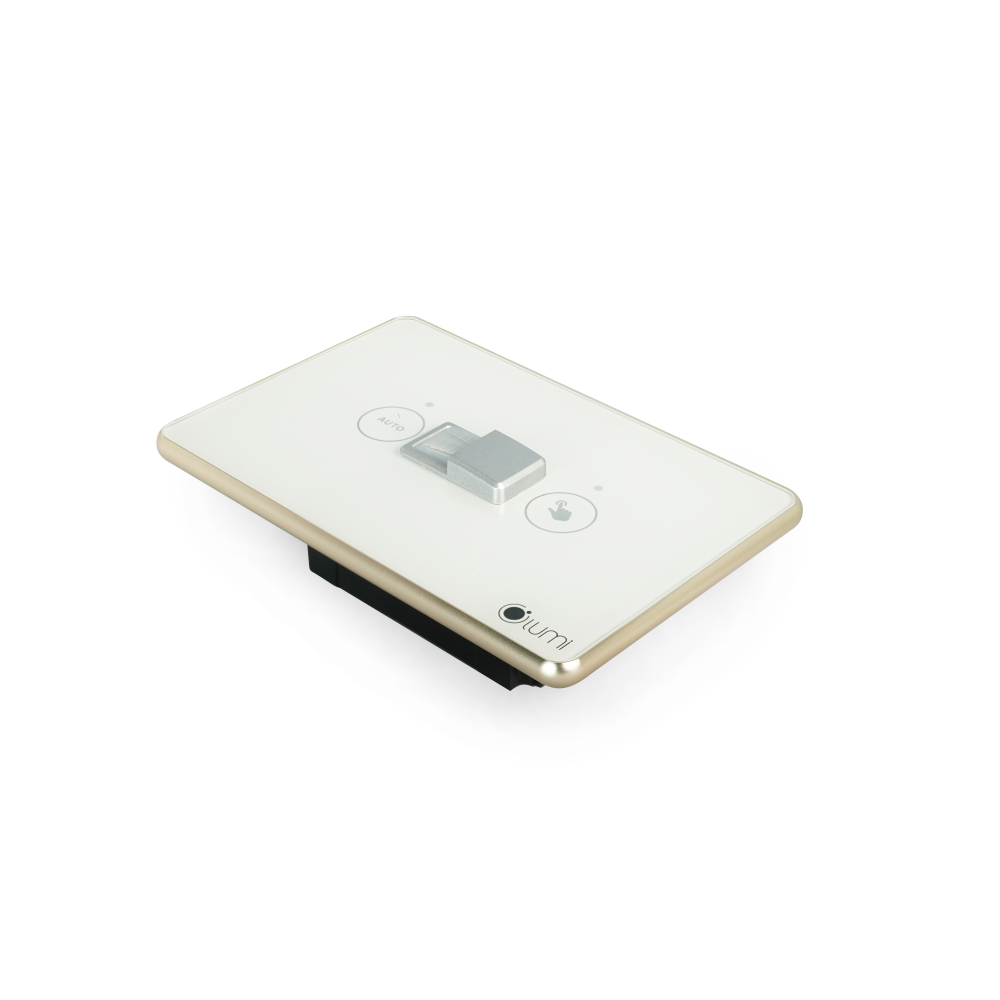
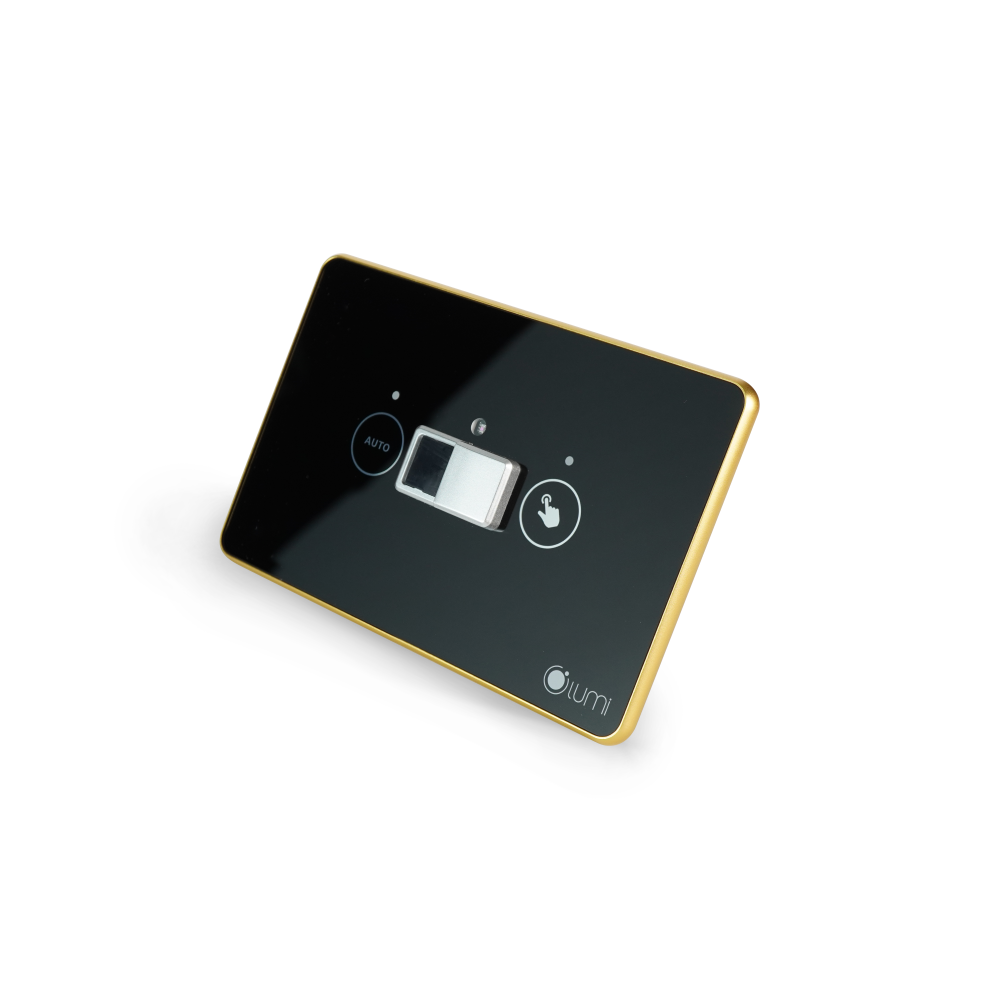
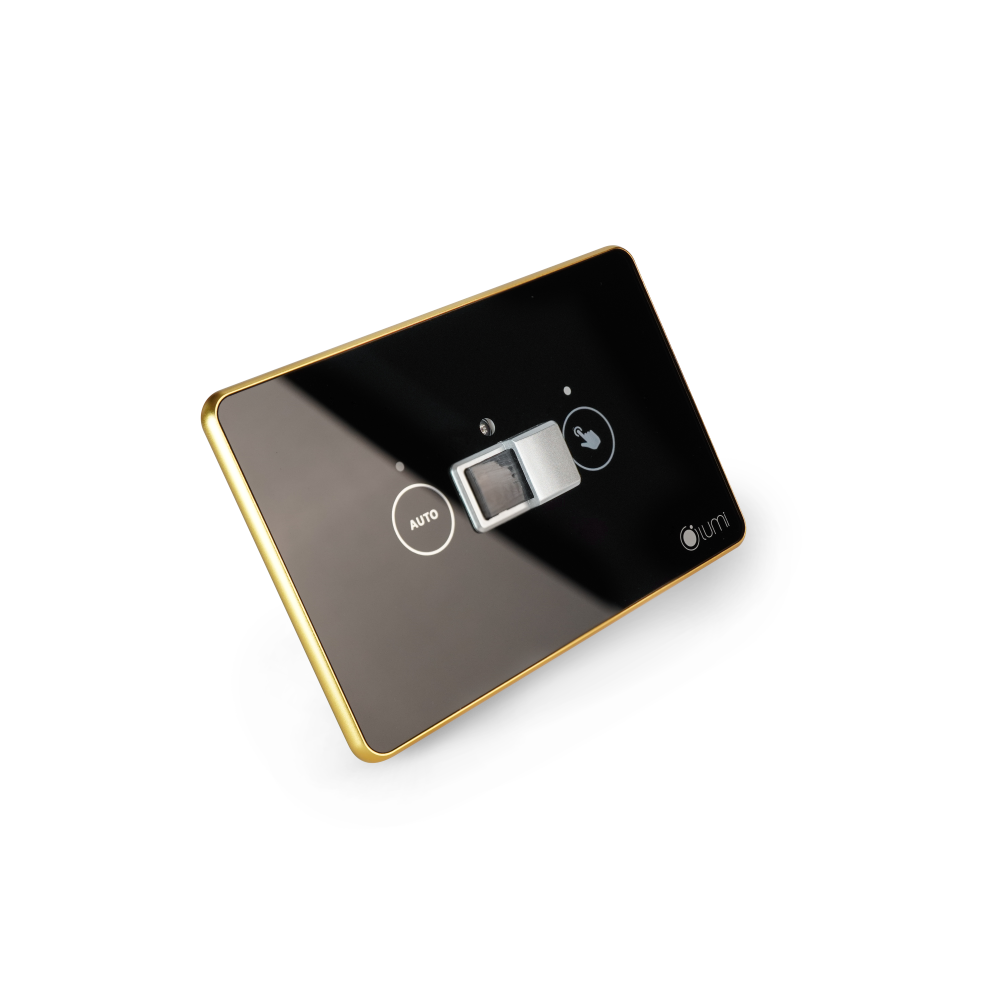
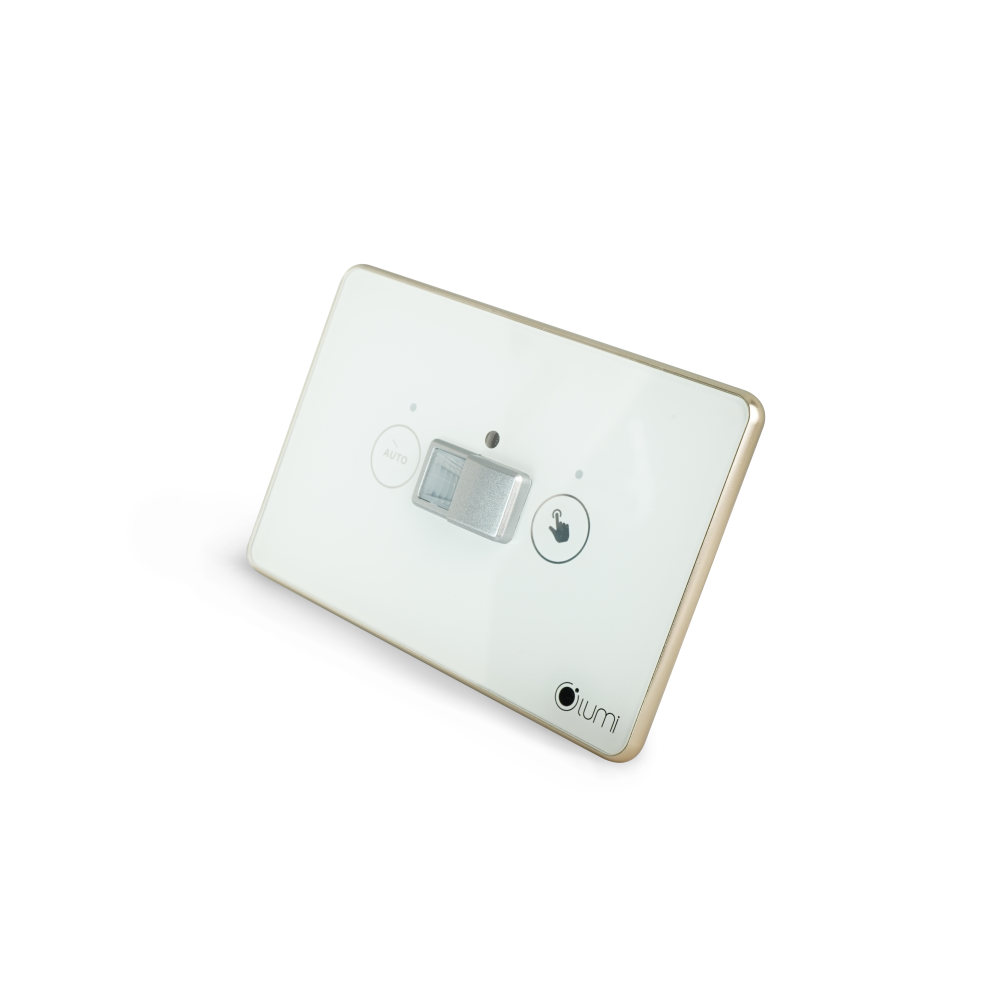
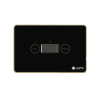
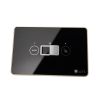
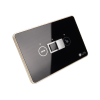
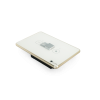
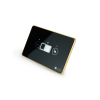
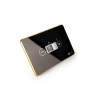
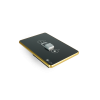
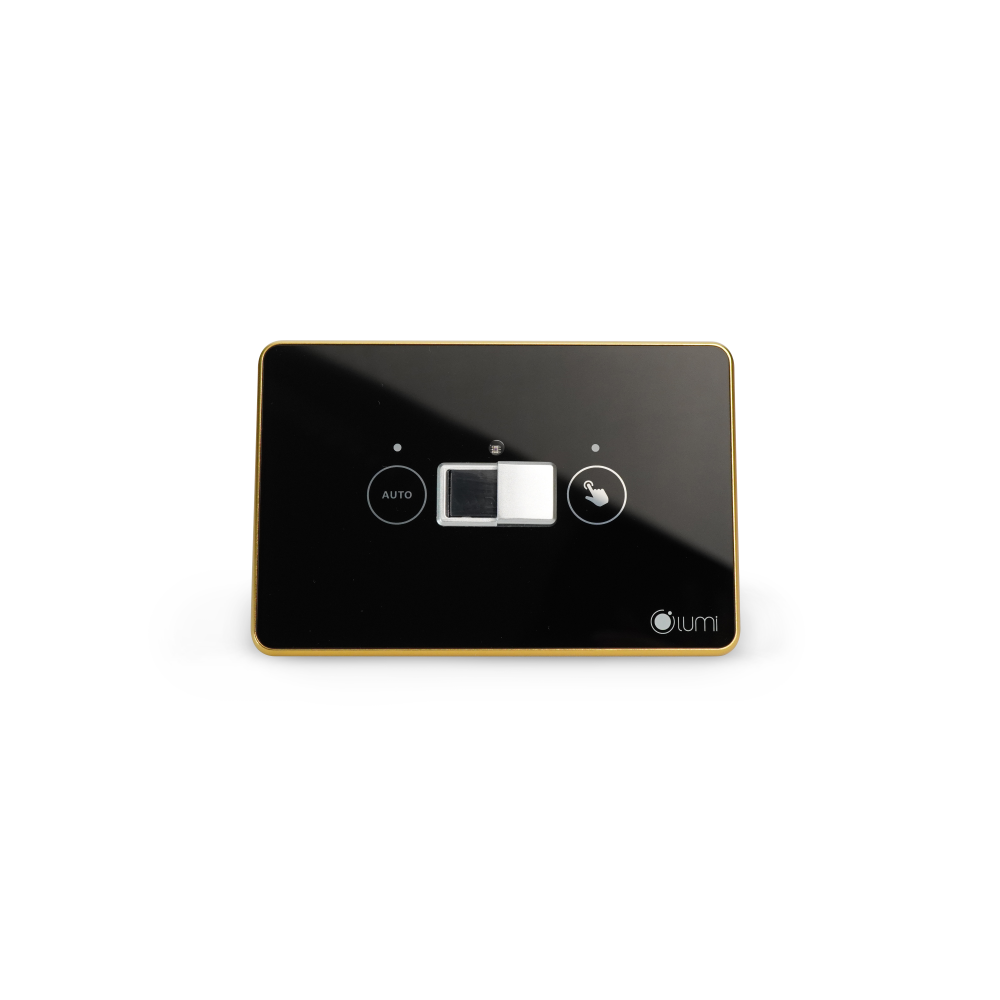
LM-MSZ is a smart stair switch from Lumi that supports automatic on/off of one output load channel.
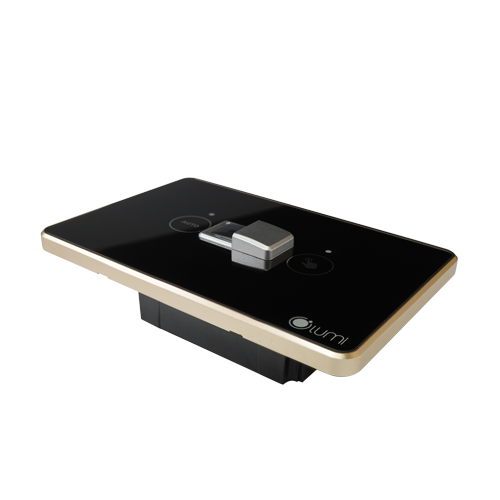
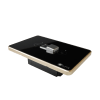
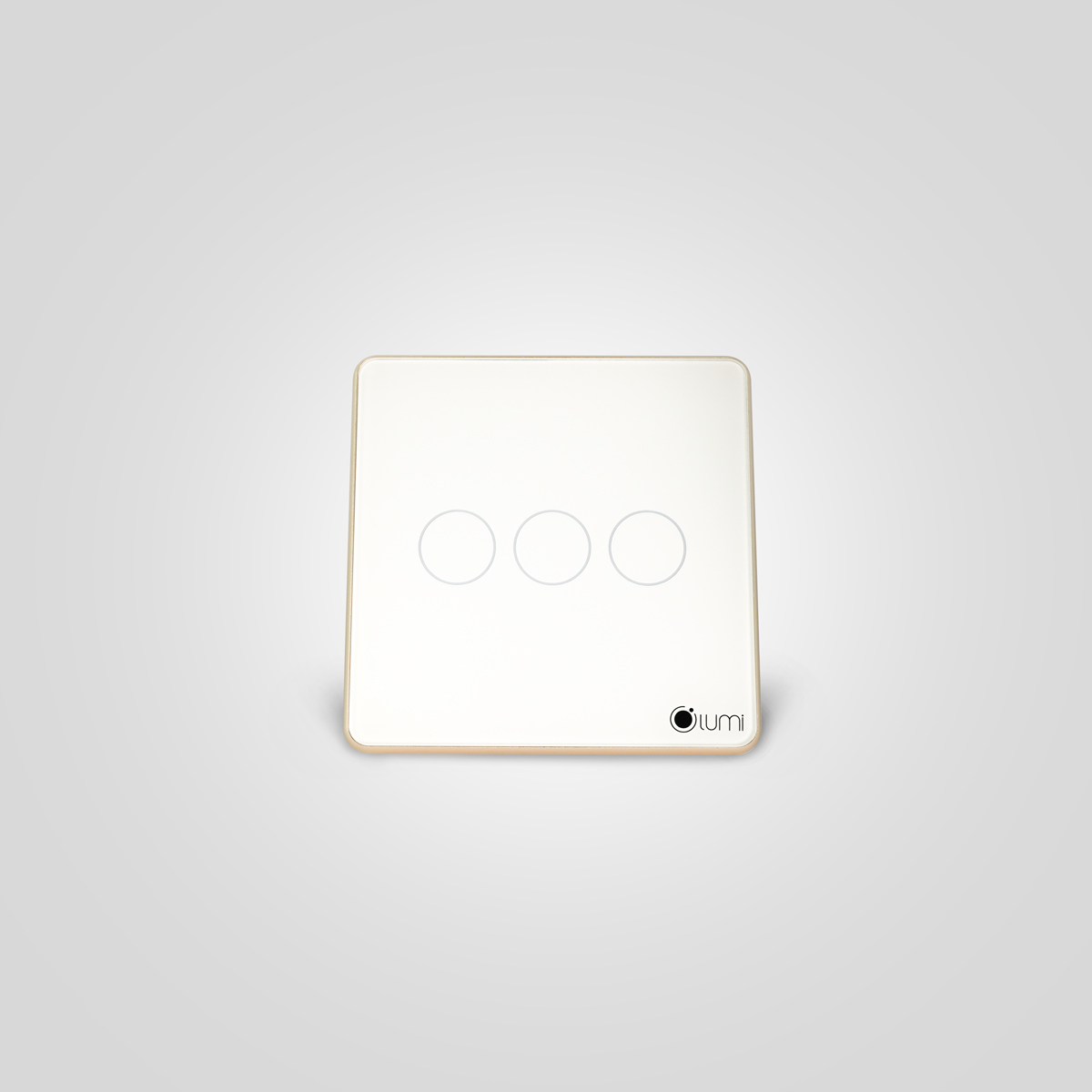
Design: Scratch-resistant tempered glass with a solid aluminum bezel.
Technology: Capacitive touch, Zigbee/BLE Mesh wireless communication protocol.
Control method: device automatically turns on/off when detecting motion, turns on/off manually, controls remotely on the Lumi Life app via the central controller.
2. Technical specifications
| Operating voltage |
100 – 240V AC ~ 50/60Hz |
| Operating temperature |
0℃ – 50℃ |
| Communication |
Zigbee |
| Zigbee transmit power |
10 dbm |
| No-load power consumption |
< 0.5W |
| Load capacity |
No-load: ≤ 700W |
| LED load: ≤ 150W |
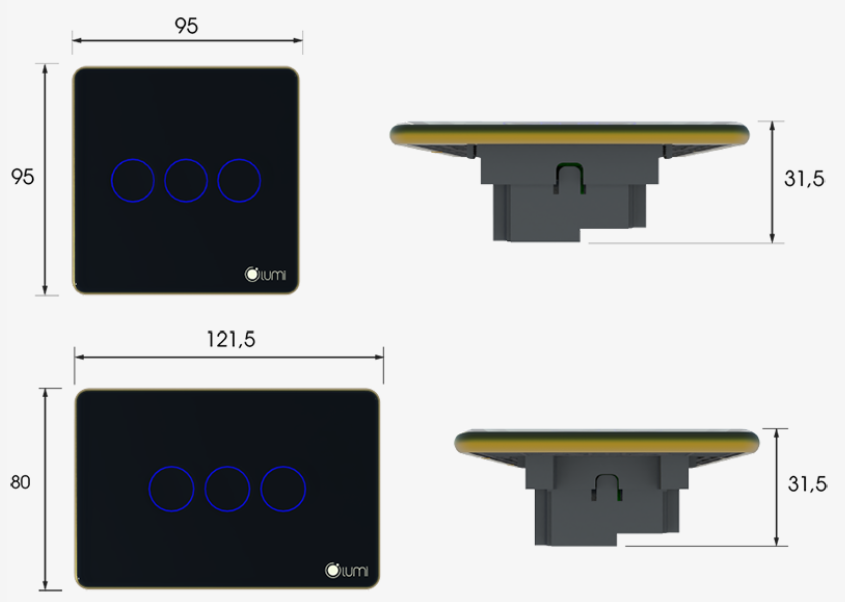
| Dimensions (D x R x C) |
Rectangular: 121.5 x 80 x 31.5 mm |
| Square: 95 x 95 x 31.5 mm |
3. Installation
Step 1: Wire the device.
Wiring diagram:
- L: Connect the live wire of the power supply.
- N: Connect the neutral wire of the power supply.
- 1: Connect the live wire of the load.
Step 2: Install the switch in the recessed box.
- Remove the switch glass: Use a screwdriver to insert into the small groove on the switch bezel and gently push to remove the glass.
- Install the switch in the recessed box and reinstall the glass.
Note:
- Compress the electrical wires in the recessed box to fit the switch and avoid screwing into the wires.
- Do not screw too tightly, as this will bend the switch, warp the switch’s touch circuit, and prevent the switch from being turned on or off manually.
4. User guide
4.1. Operating mode
The motion sensor switch has two operating modes: auto mode and manual mode.
To switch operating modes, the user presses and holds the Auto button for 1 second, and observes the indicator LED blinking red twice before releasing the button.
When the switch is operating in auto mode, the Auto button indicator LED turns blue. When the switch is operating in manual mode, the Auto button indicator LED turns off.
4.2. Auto mode
By default, the device will operate in auto mode.
When motion is detected, the switch will automatically turn on, and the indicator LED in the shape of a hand turns red. During the time of motion detection, the indicator LED in the Auto button blinks blue every 2 seconds.
When there is no more motion in the detection area, the switch will automatically turn off, and the indicator LED in the shape of a hand turns blue.
4.3. Manual mode
When the device is operating in manual mode, the user must turn the switch on/off manually or control it using the Lumi Life+ app.
In addition, the user can still configure the motion sensor to automatically turn on/off the switch on the app.
(For more details, see the instructions on setting up device in the section below).
4.4. Motion sensor
The staircase switch with integrated motion sensor has two motion detection scan angles.
- Horizontal angle: 150⁰
- Vertical angle: 35⁰
- In addition, the device comes with a motion sensor cover that can be used to narrow the detection angle of the first motion scan to half, to 75⁰. The detection angle of the second motion scan remains the same.
Motion sensor auto-off time:
- When operating in auto mode, the switch will automatically turn off after no motion is detected.
- The default auto-off time for the switch is 5 seconds. The user can change this time on the device.
- The user uses a flat-head screwdriver to adjust the arrow to the desired time mark.
Light level for motion sensor to operate:
- The user can combine the motion sensor with a light intensity threshold to create a condition for the sensor to operate.
- Based on the installation location, the user can choose the appropriate light level for the sensor to operate as desired.
Example:
- If you want the sensor to only operate when the light in the house is weak or when it is dark, you can adjust the arrow to 20 lux. This means that when the light at the sensor’s location has an intensity of ≥ 20 lux, the sensor will operate.
5. Setup devices
5.1. Joining the network
To set up the switch control via the app on the phone, users need a central controller (HC) and have created a home on the system.
Users log in to the Lumi Life+ app > select Settings > select Device Settings > select HC > Zigbee > Join Network.
The indicator light on the switch flashes red four times in a row with a cycle of 1s/1 time when joining the network successfully.
If the switch does not join the network, the switch may have been configured, and the user can reset the device to return to the network joining mode.
5.2. Controlling devices on the Lumi Life+ app
After the switch joins the network, the user can name the device and add it to a room to control it using the Lumi Life app on their phone.
Similar to turning on/off other switches, the user taps the device icon to turn it on/off.
- Bright icon: the switch is on.
- Dark icon: the switch is off.
Sensor configuration:
Note: Switch the device to manual mode before making custom configuration settings with the sensor on the app.
The user switches to the sensor display tab to view the sensor status:
- Bright sensor icon: Detecting motion.
- Dark sensor icon: No motion.
When operating in manual mode, the device can be customized according to the user’s needs by setting the configuration on the app.
- For the switch button, the user controls it to turn on/off as described above.
- For the sensor, the user can set a Rule to automatically turn on/off the switch as desired.
- Parameters such as: auto-off time, operating light level, can be completely set on the app without having to operate on the device.
5.3. Resetting the device
To reset the device, the user presses the config button 5 times, and the indicator LED flashes red twice.
If the reset is successful, the device returns to the original power-on mode, the LED flashes red twice and then flashes red 3 times. At this point, the device returns to the process of automatically searching for a network.
6. Packaged product set
The Luto Smart Stair Switch (With Sensor) set is packaged in a box including: 1 switch set, 1 sensor cover, 2 screws, 1 user manual.



 Tiếng Anh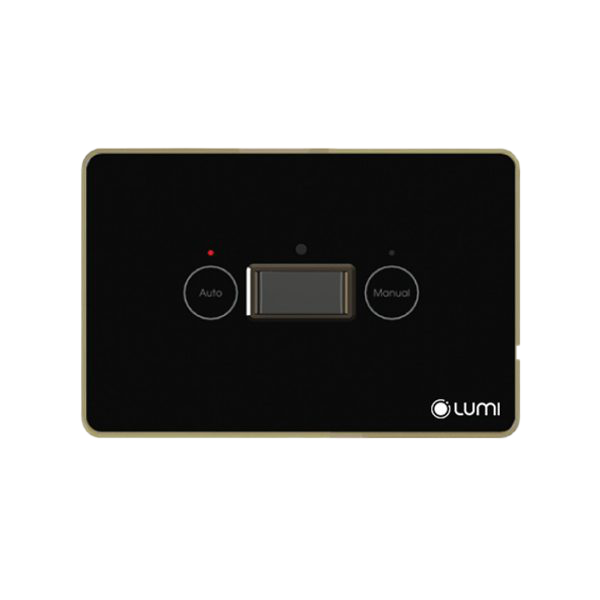


 lumi cung cấp


