In addition to the smart power switch, the 2IN – 2OUT module is also an option for customers who do not want to replace a traditional mechanical switch, but want to experience the features of the Lumi Smart Home.
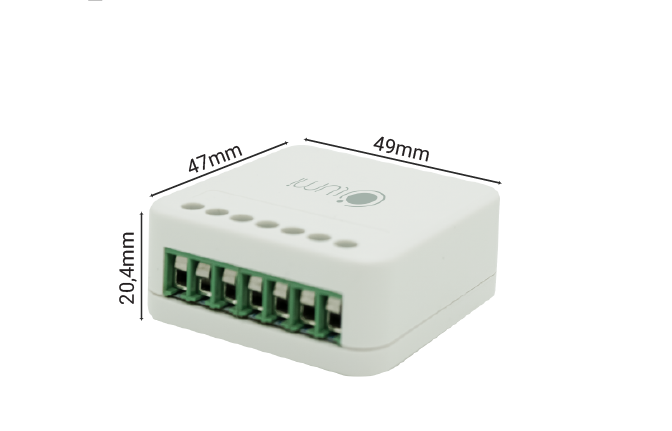
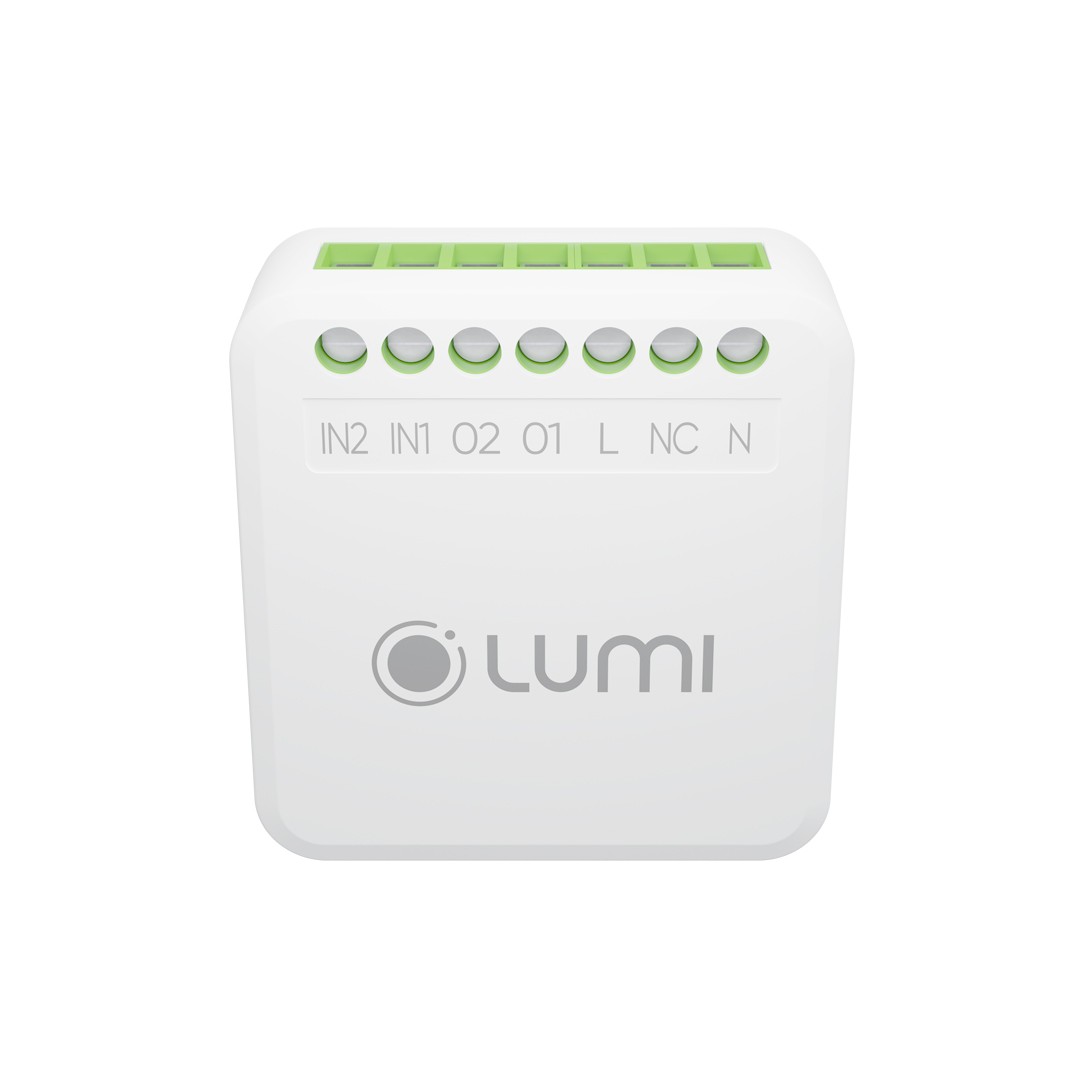
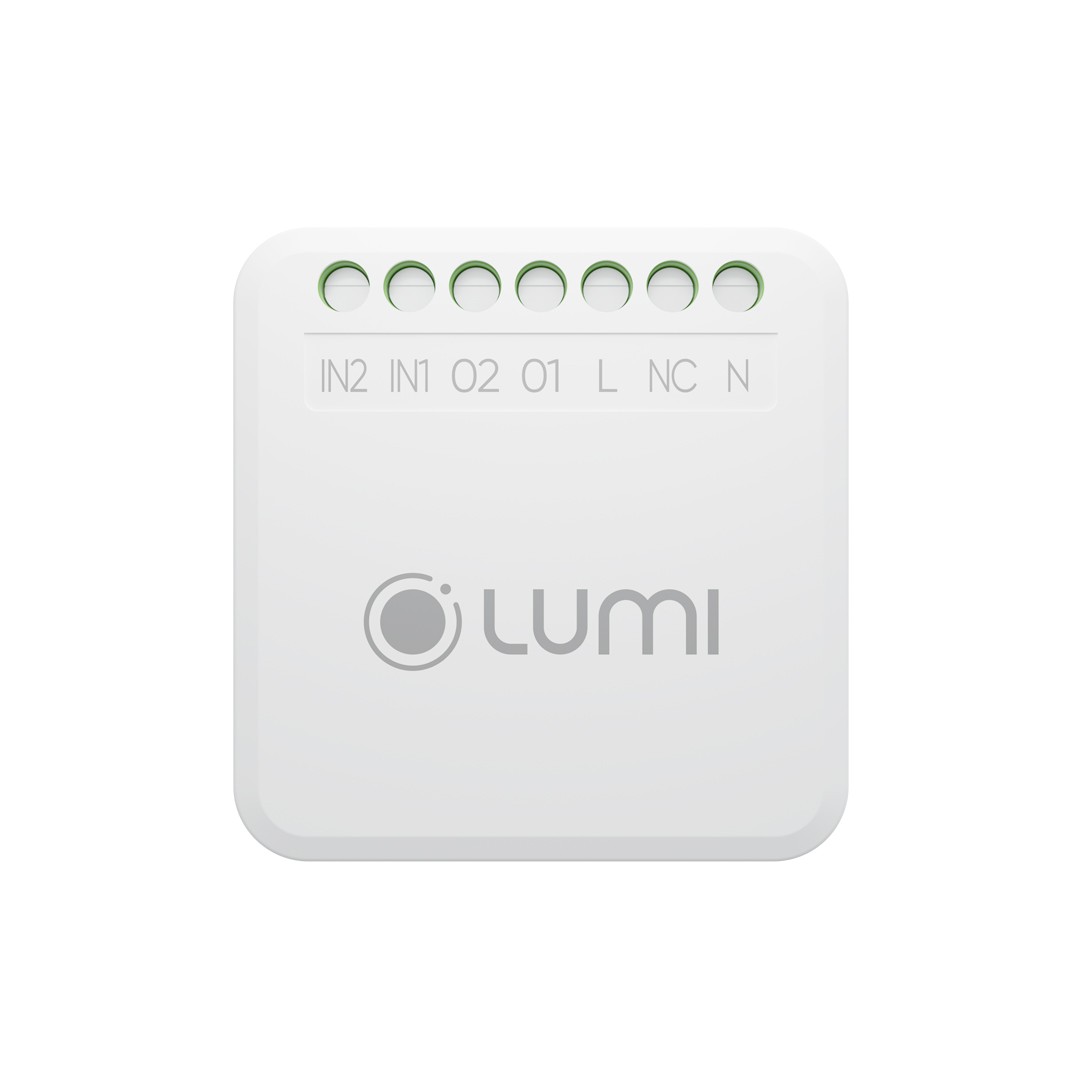
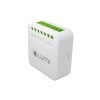
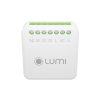
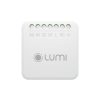
With a compact rectangular box design, the size of only about 1 matchbox, the 2in 2out module easily makes the house smarter and discreetly installed in the base of the switch.
1. Application of Module 2in – 2out in smart home
Described for those who love the traditional on / off design and experience of the mechanical switch, but still want to turn home electrical appliances into smart devices, the 2in – 2out module allows users to perform the following smart features
- Turn on / off the lighting system by Smartphone and voice
- Turn on / off the heater with Smartphone
- Schedule/schedule the lights, water heater according to the family schedule
- Create groups of devices of the same type in the Zigbee network, is the input signal to trigger rules, scenes, and calendars
2. Mode of operation of module 2in – 2out
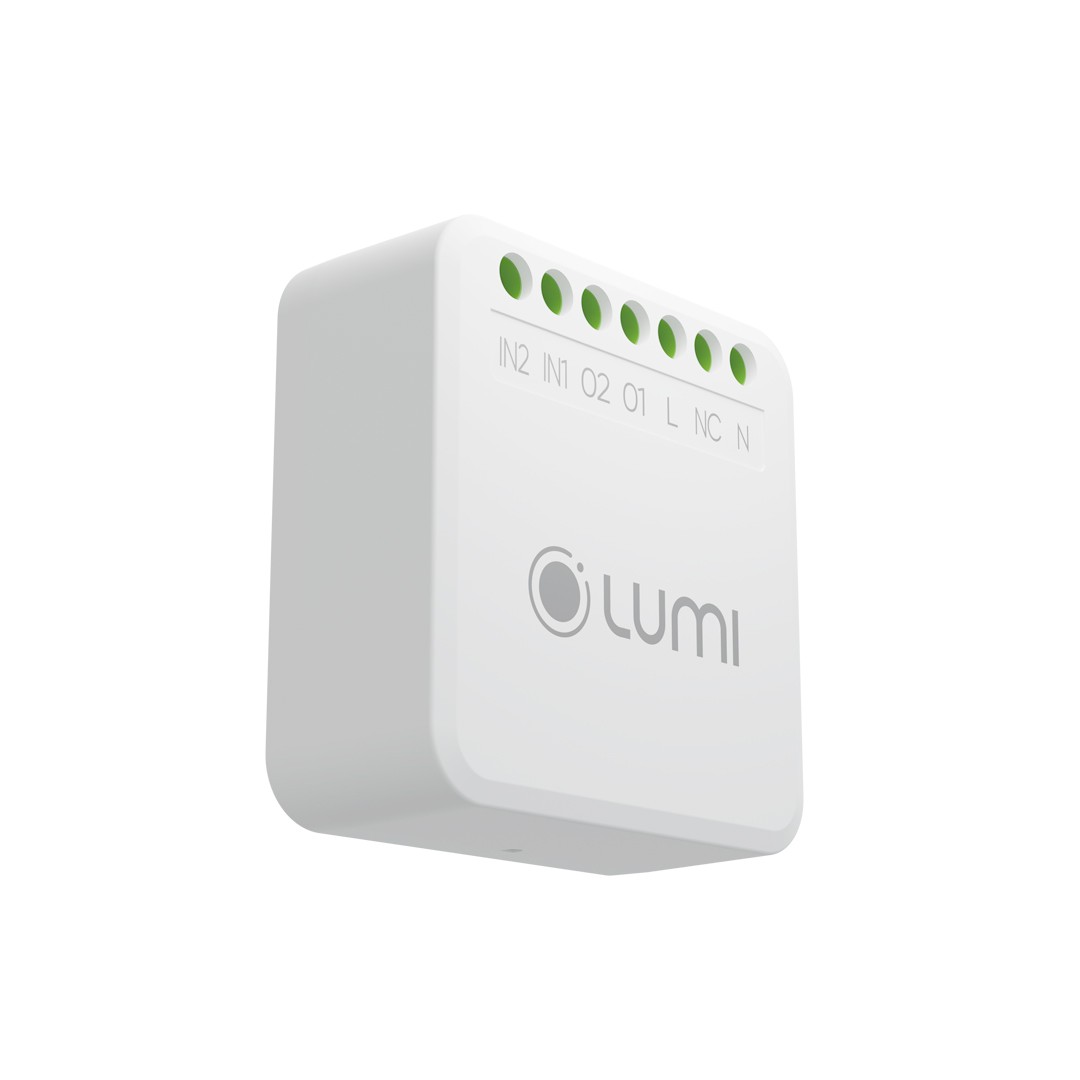
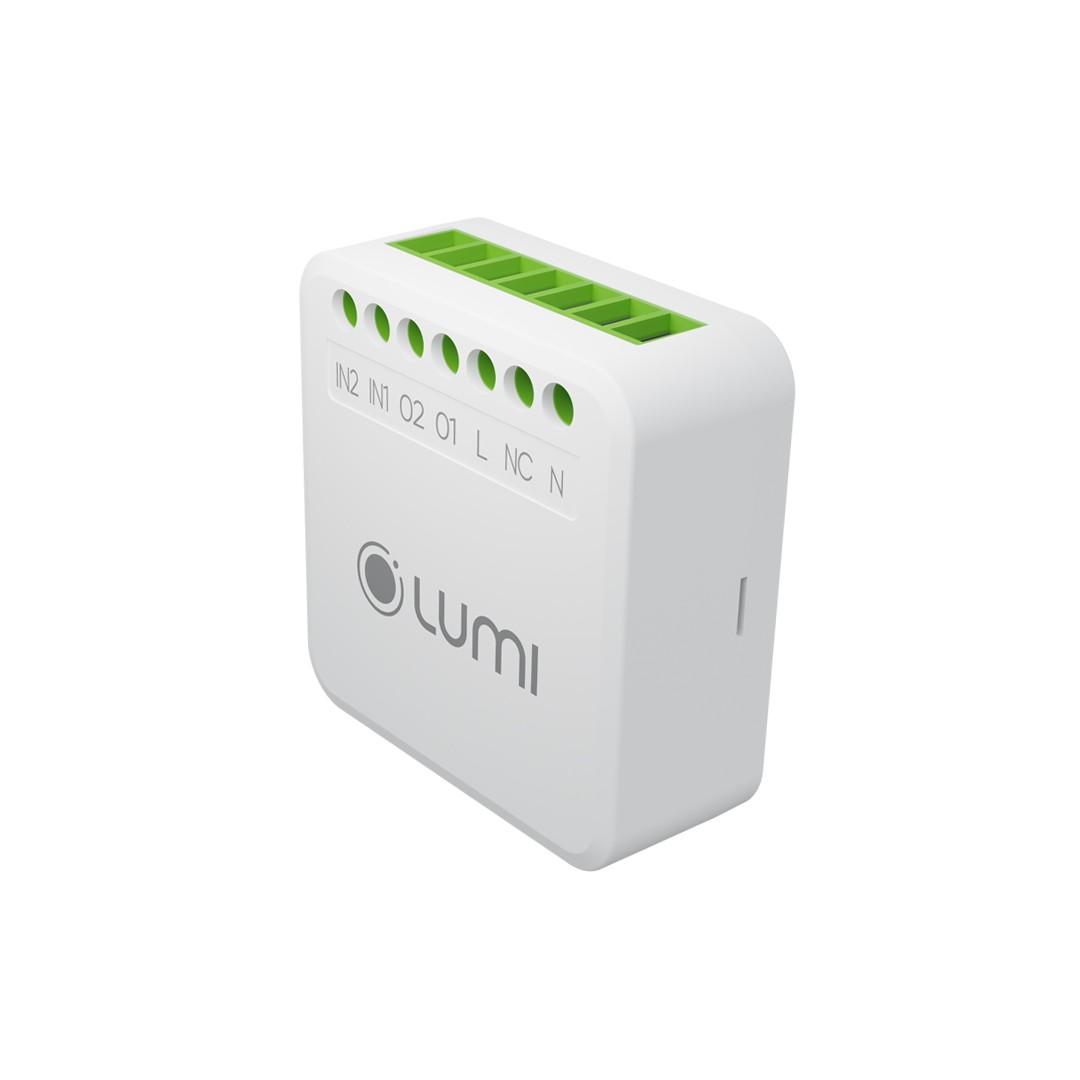
The 2in – 2out module has 2 input loads and 2 output loads and is installed in the base of the switch. Simply put, when the user presses the switch, this signal will transmit to load 1 of the module. This signal is considered as 1 input signal. From load position 1 of the module, a signal will be transmitted to load output 1 of the module. This output load is directly connected to the electrical equipment.
When using the smartphone to control, the signal is transmitted from the Smartphone to the Central Controller. After being processed, the signal will be sent to the 2in – 2out module, then transmitted to the device to execute the command.
Thanks to the 2in 2out module, customers have 1 more option to set up a Lumi Smart Home system without infrastructure intervention, and even without changing the existing mechanical switch.
Technical specifications:
- Operating Voltage: 110 – 240V AC ~ 50/60Hz
- Power consumption: No-load: 1000W/ LED load: 200W (per output channel)
- Communication: Zigbee/BLE Mesh
- Transmit power: 10 dBm
- Maximum range between Zigbee devices: 10m/40m (with/without obstacles)
- Dimensions: 47.5mm x 49mm x 20.4mm
- Operating temperature: 0 -> 50 degrees C
Wiring diagram
When powering the device, the indicator LED blinks four times, and the device turns into checking network status.
- If the device has not been configured for the network, the indicator LED will flash red three times, then turn red.
- If the device has been configured to the network and connected to HC successfully, the indicator LED will flash red three times, then turn blue.
- If the device has been configured for the network but cannot connect to the HC, the LED will flash blue three times, then turn red.
Set up device control
- Add device into network: Users log in to the Lumi Life+ app > select Settings > select Device Settings > select HC > Zigbee > Join Network.
- When the device successfully joins the network, the indicator LED on the device will flash red three times.
- If the switch does not join the network, the switch may have been configured, and the user can reset the device to return to the network joining mode.
Control devices on the Lumi Life app
- After successfully connecting to the network, you can operate the device using the Lumi Life+ app.
Remove Zigbee network information from a device
To remove Zigbee network information from a device, perform these steps:
- Identify the switch connected to Input 1 on the module and turn it off.
- Turn the switch on and off at the Input 1 five times in a row, with a 2-second interval between each on/off. The indicator LED on the device will flash red twice for 2 seconds, then the LED will turn solid red.
- Power cycle the device five times, with a two-second break between each cycle.
- Within 5 seconds of the LED on the device flashing red, turn the switch connected to Input 1 off and then on again to confirm the erase process. After the erase is successful, the indicator LED on the device will flash red 4 times and the module will enter the network search mode.
- Wait until the LED is finished flashing, then turn the switch connected to Input 1 off and back on.
NOTE: After the Zigbee network information is erased from the device, the device will be removed from the HC Zigbee network. Users will not be able to control the device from the app at this time. However, the configuration information for the device, such as the operating mode, name, room, etc., will still be stored on the App Lumi Life. When the user taps the Join Network button in the app, the device rejoins the network without having to be reconfigured.
Reset the device
To reset the device, follow these steps:
- Press the config button on the back of the product five times in a row.
- The indicator LED on the device will flash red twice to show that the reset was successful.
- Following the reset, any advanced settings and network information stored on the device will be removed, and the device will be returned to its factory settings.
NOTE: After resetting, all network information and device operating settings will be completely erased.
Set up a device group (Binding)
In addition to using the Lumi Life app, you can also configure the device grouping (binding) feature directly on the module. This allows the In Out module to synchronize its state directly with other In Out modules and Zigbee switches without going through the HC.
To set up the binding feature, follow these steps:
- Step 1: Turn the module into setup mode. Press and hold the Config button on the product shell for 10 seconds until the indicator LED flashes red twice (confirm that you have entered setup mode) and then release your hand.
- Step 2: Select the channel to add to the group. The user selects the channel to customize. To select channel 1, the user quickly presses the Config button once, to select channel 2, the user quickly presses Config twice.
- Step 3 – Add other devices to the Binding group: Repeat steps 1&2 above for other devices (In Out modules, touch switches, etc.).
- Step 4 – Confirm completion of the setup: After completing the setup and placing all of the devices in the same Binding group, the user quickly presses the Config button twice or waits 60 seconds for the device to automatically exit setup mode.
To remove a module from a Binding group:
- The user repeats steps 1&2 similar to the group setup procedure described above. If the selected channel was previously configured into a binding group, step 2 will remove the old group’s information and continue configuring the channel into a new group.
- Furthermore, the first device entered into the Binding setup mode will be regarded the initializing device (Init). If you remove the Init device from the group, all of its configurations will be removed. If devices that joined the group after the initializing device (Init) are deleted, the overall configuration will be unaffected.
NOTE:
- Only one Binding group should be set up at a time.
- The maximum group configuration is 5 buttons in a group and it is not possible to configure a group for buttons on the same device.
Set up the operating modes for the product
To learn how to set the input signal mode of the device (Input Mode) on the Lumi Life App, see the details here.
You can configure the input signal recognition of the module (the module will receive signals from switches in the form of a long press, a press and release, or simply updating the switch status to the App when it changes). The following are the configuration methods:
Step 1: Press and hold the device’s config button for 3 seconds until the indicator LED flashes green twice, then release your hand. At this point, the indicator LED will turn red to indicate that it has entered configuration mode.
Step 2: Proceed to configure the corresponding input channel (for example, if you want to configure for channel 1, then you will proceed to press the switch connected to channel 1 according to the following operations and observe the LED on the device’s shell).
- Turn on/off once: Set the input channel to the Toggle Switch mode – the indicator LED flashes red once. (In this mode, when the input signal is ON, the output is also ON, and when the input signal is OFF, the output is also OFF. The signals between the input and output are identical).
- Turn on/off twice: Set the input channel to the Any Change mode – the indicator LED flashes red twice. (In this mode, whenever the input signal changes state, the output also changes state, regardless of whether it is the same ON/OFF state or not).
- Turn on/off three times: Set the input channel to the Momentary Switch mode – the LED flashes red three times. (In this mode, for the type of switch that does not hold the state, such as a doorbell button, each time you press and hold the button for about 2 to 7 seconds and then release your hand, the output will change state once. In addition, each such operation will be counted as a holding state sent to the App).
NOTE: Before entering step 2, you must put the input switch in the off state. If the input switch is already in the on state, turn it off first, then turn it on/off the number of times specified above.
Step 3: Press the Config button on the back of the product once or wait 15 seconds without any further action. The indicator LED will flash green twice to indicate that the configuration is complete and the mode will automatically exit. If the configuration fails, the indicator LED will flash red twice. Press the Config button once more to end the configuration – the LED on the device will flash green twice.
Set up the output signal
To learn how to set the out signal on the Lumi Life App, see the details here.
Users can set the mode for devices at the output with the following modes:
- Normal on/off mode
- Auto-off mode: After turning on, it will automatically turn off after a certain period of time
- Auto-on mode: After turning off, it will automatically turn on after a certain period of time
- Auto-on/off mode:
- Delay off mode: For example, the light is on and receives a signal to turn off from the input, but the light will turn off after a while.
- Delay on mode: For example, the light is off and receives a signal to turn on from the input, but the light will turn on after a while.
Note: This function can only be configured on the App. There is no support for configuration operations on the device.
Set up power mode
When the module loses power and then is powered back on, you can set the state for the output (Output) of the module when it is restarted. There are a total of 3 modes:
- Default off (Default Off): When the module is powered back on, the output of the module will always be in the off state.
- Default on (Default On): When the module is powered back on, the output of the module will always be in the on state.
- Restore the old state: When the module is powered back on, the output of the module will restore the old state before losing power.
To set up, follow these steps:
- Step 1: Press and hold the config button on the device for 5 seconds until the indicator LED flashes red twice, then release the button. At this time, the LED on the device case will turn red to indicate that it has entered the mode for allowing configuration.
- Step 2: We proceed to configure for the corresponding output channel (for example, if you want to configure for channel 1, you will proceed to press the switch connected to channel 1 according to the following operations and observe the LED on the device case).
- Turn on/off once: Set the output channel to the default off mode; the LED flashes red once.
- Turn on/off twice: Set the output channel to restore the old state mode; the LED flashes red twice.
- Turn on/off three times: Set the output channel to the default on mode; the LED flashes red three times.
Note: Before entering step 2, we must turn the input switch off, or if the input switch is in the on state, it will be turned off, then turn on or off according to the number of times above.
- Step 3: Press the Config button once or wait 15 seconds without any further action. The indicator LED will flash green twice, showing that the configuration is complete, and will automatically exit the mode. If the configuration fails, the LED on the device case will flash red twice.
- Step 4: Press the Config button one more time to end the configuration; the LED on the device flashes green twice.
Set up the input-output link (Link-Unlink)
If the user does not want the change of the input switch to affect the state of the output electrical device, they can perform the Un-Map operation on the App Lumi Life. At this time, the device status on the App Lumi Life will be based on the output state, while the input input cannot control the device at the output output but can still send events to the App Lumi Life (for example, event press once, press twice, press and hold).
Note: This function can only be configured on the App. There is no support for configuration operations on the device.
Complete product installation
Step 1: Connect the device to the mechanical switch and the power supply in the house
Step 2: Place the device inside the socket, then cover the switch face outside
Step 3: Screw and complete the product installation



 Tiếng Anh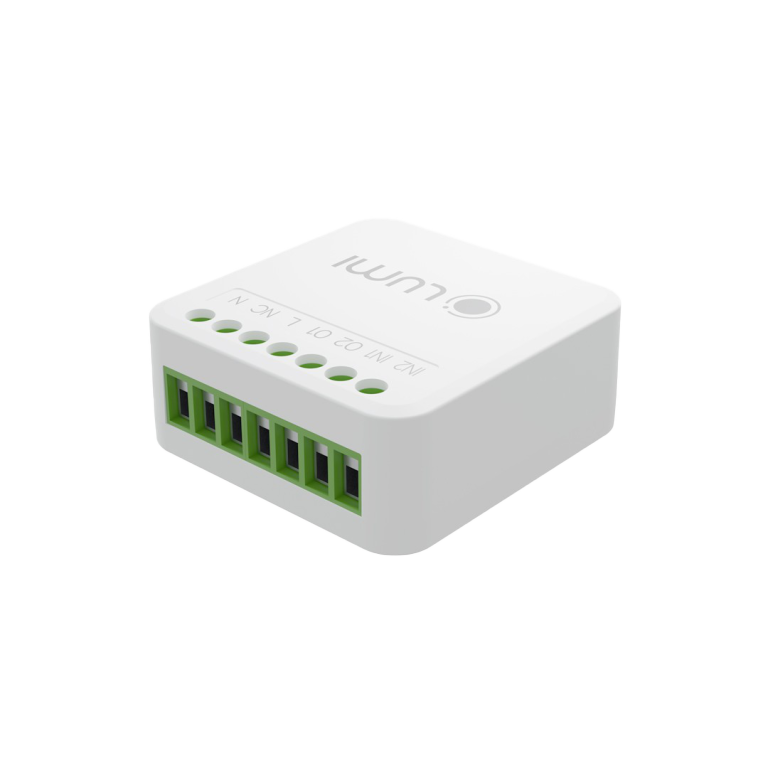

 lumi cung cấp


