1. Product classification
Lumi single curtain switch includes:
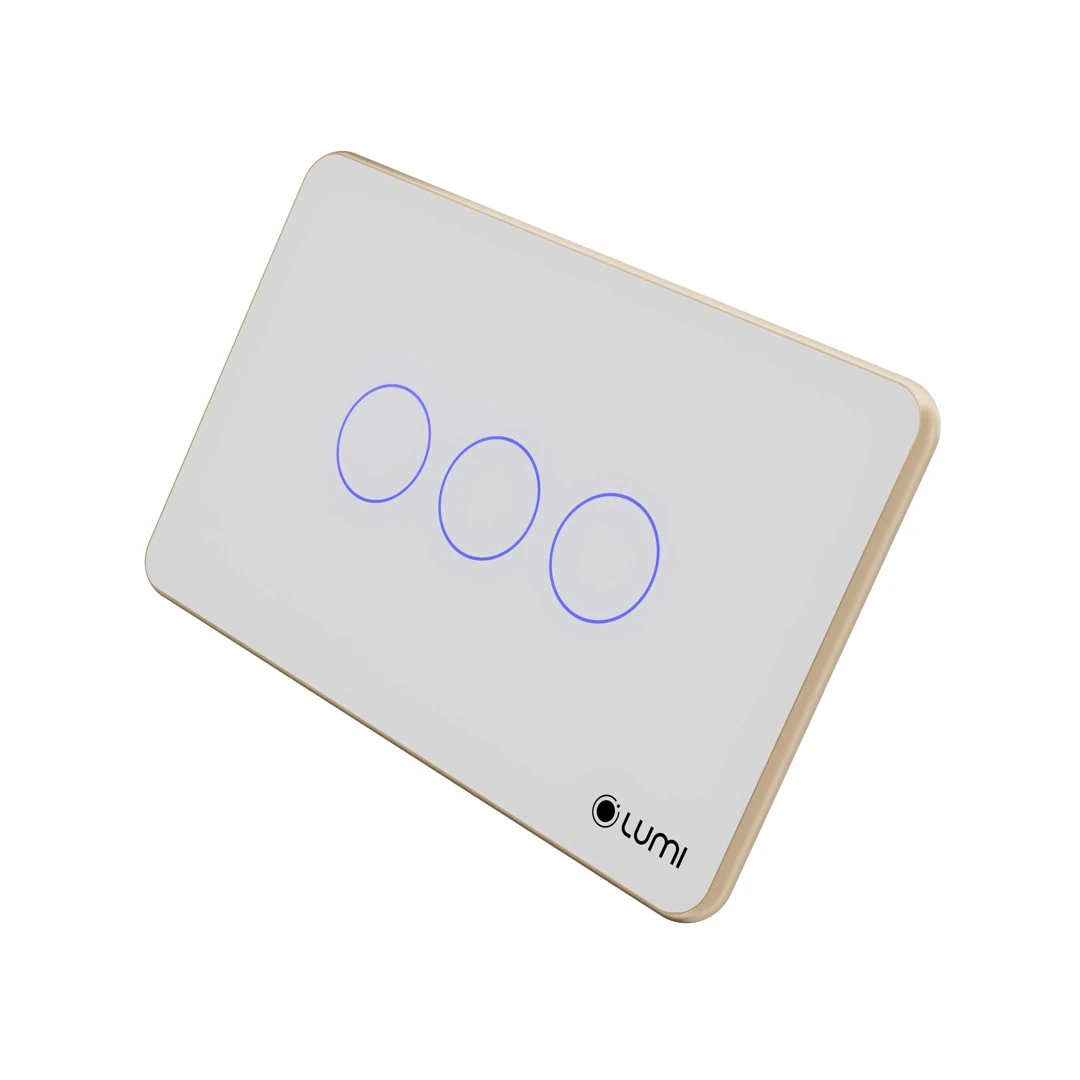
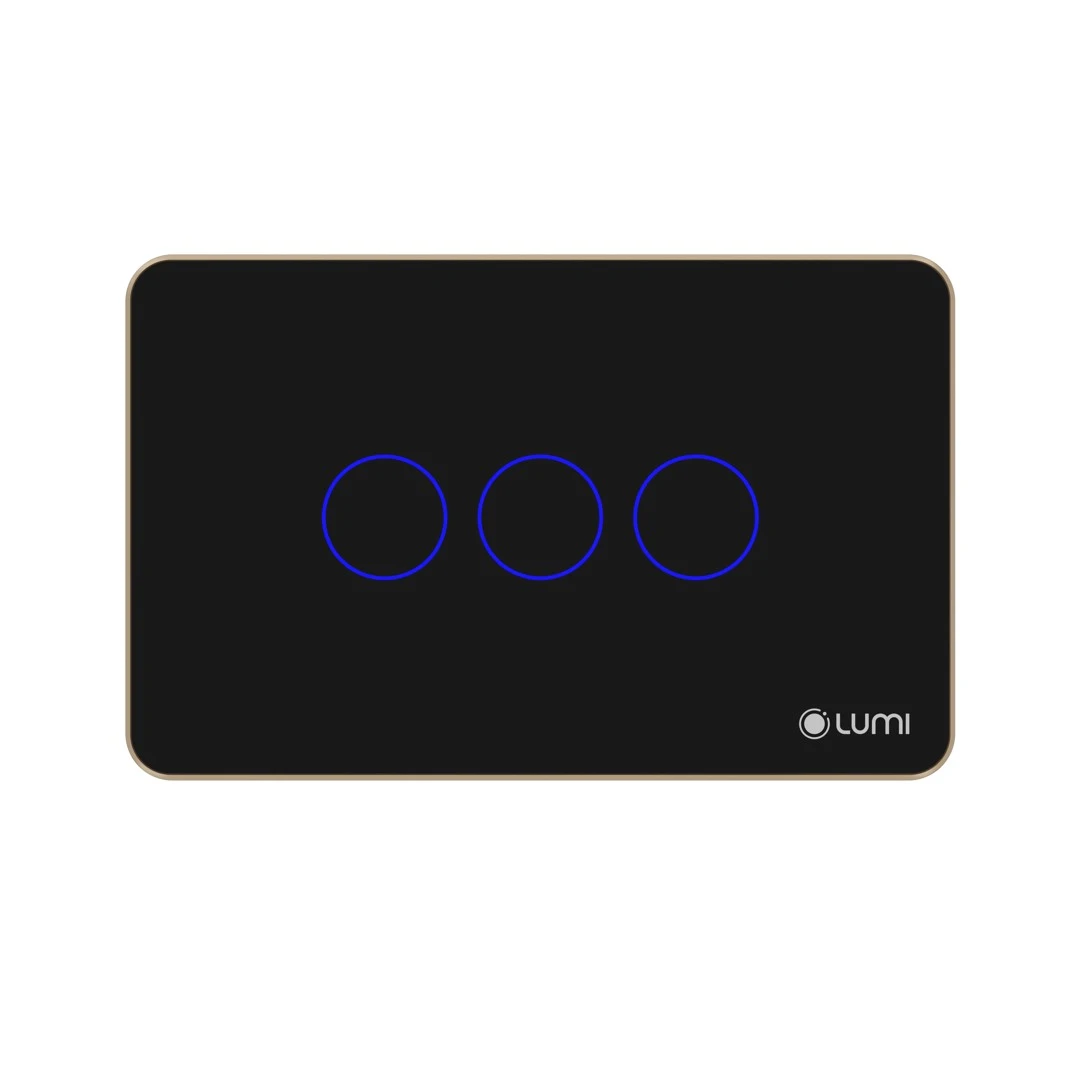
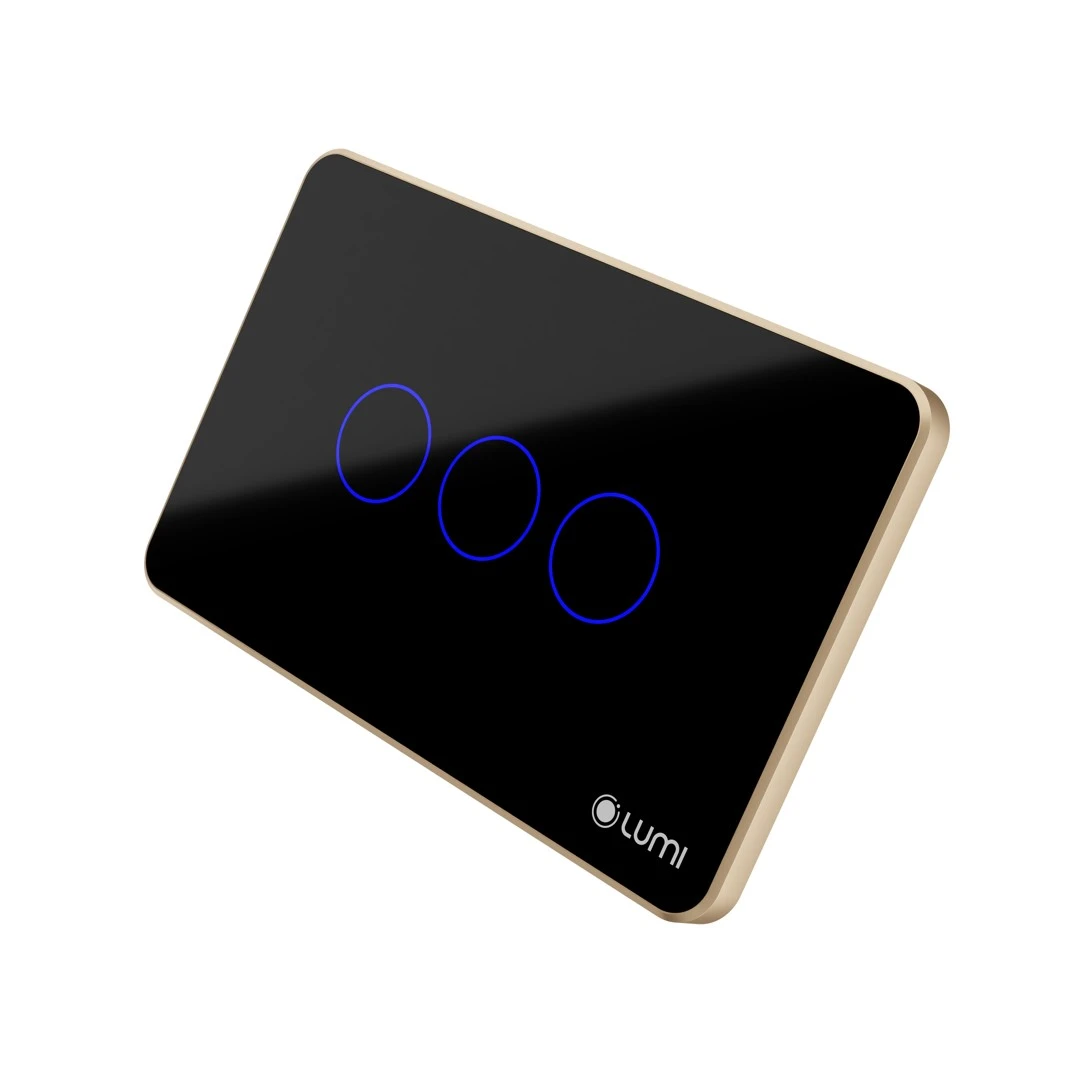
- Color: Black and white
- Shape: Rectangle and square
- Number of touch buttons: 3 buttons (open, stop, Close)
- In shape:
- Square (DxRxC): 95 x 95 x 32.5 mm
- Rectangular ( DxRxC ): 123 x 78 x 32.5 mm
2. Features Single curtain smart switch
2.2. Modern, sophisticated, luxurious design
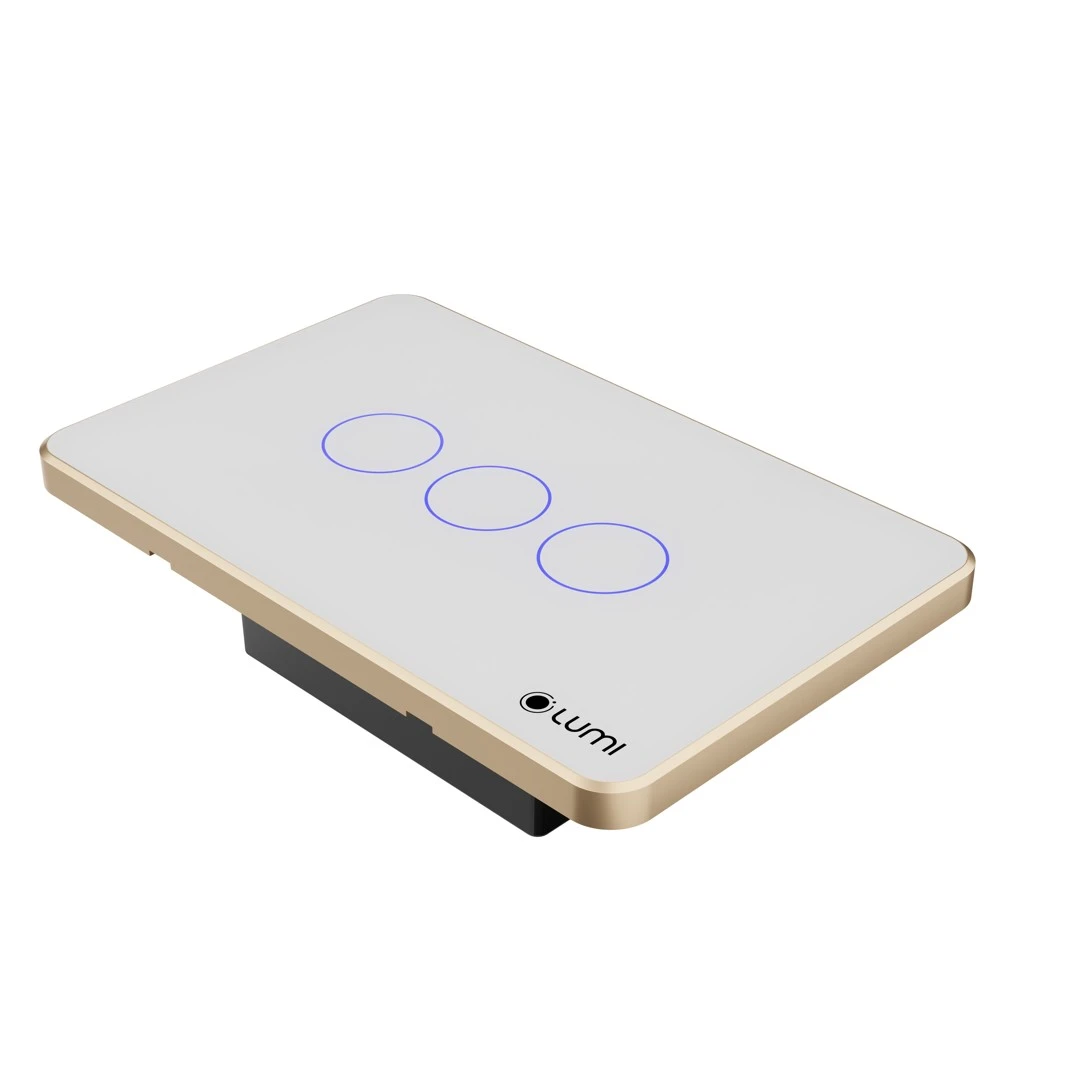
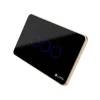
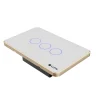
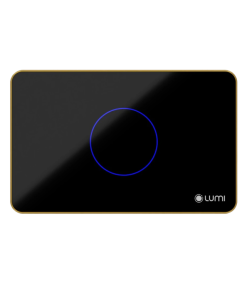
The single curtain switch is located in Lumi’s smart touch switch, so the design remains the same as other smart switch. Using capacitive touch technology. The tempered glass surface is scratch-resistant and has good impact resistance. Combined with the Led glowing circle around, with the Lumi logo at the right corner, it creates a highlight for the brand and the appeal for the product. At the same time, the LEDs are always on, whether on or off. So, you will immediately see the switch even in the dark, making the house sophisticated, luxurious and modern.
2.3. Single curtain switch function the single curtain
The switch is an intelligent touch switch. Just lightly touch the circular icon on the glass surface. Can control opening/closing single curtain device (curtain 1 layer) – curtain pulls horizontally.
Besides, with Zigbee wireless connection technology, Lumi’s Single Curtain Smart Switch can be controlled from anywhere. Even when you are not at home through mobile devices with Wi-Fi, 3G connection.
When integrated into the smart room system, the LM-S3C single curtain switch can connect to other devices such as motion sensors, door sensors through the central controller. The LM-S3C can receive control commands from the Lumi Life app on devices such as phones, tablets, or computers when connected to Wi-Fi or 3G. In addition, the LM-S3C can be scripted fully automated. Schedules are installed from the software or operate in a smart room system.
There are 3 buttons on the single curtain switch face, corresponding to the button: open, stop, close. When the single curtain is open, the Open button indicator light will light up red. After the single curtain is fully opened, the Open button will light green. When the single curtain is closed, the Close button indicator light will light up red. After the single curtain is completely closed the Close button will light green. When the curtain is pressed, the Stop button will be the same as above. Users can install the curtain systems to control via smartphones and display the status on the app. The curtain can be controlled remotely without pulling hands, simple and convenient.
2.4. Single curtain switch application
Schedule, turn on, and off timer: Set time for each device, turn on and off by an hour, by day, by week. Context can be set up. For example, 5:30 am curtained automatically open to welcome a new day, 10 pm curtains automatically close at the end of the day. Your room becomes much more comfortable and comfortable.
With Lumi’s voice recognition solution, you can control the curtains system with your own “powerful voice”. For example, when you say the statement “OK GOOGLE, OPEN CURTAIN; Hey SIRI, OPEN CURTAIN ”All curtains in the house will be fully opened or closed, depending on the command.
Use a single curtain switch to limit electrical contact, easy to use for the elderly. Smart home voice control is the ideal choice for every Vietnamese family.
Learn more about Lumi Smart Curtain Engine here.
1. General information
Product Code: LM-S3C/S
LM-S3C/S is a single curtain smart switch from Lumi that supports controlling a curtain motor having 4 control wires.
Design: Scratch-resistant tempered glass with a solid aluminum bezel.
Technology: Capacitive touch, Zigbee/BLE Mesh wireless communication protocol.
Control method: Manual, remote control via the Lumi Life+ app through the central controller.
2. Technical specifications
- Operating voltage: 100 – 240VAC ~ 50/60Hz
- Operating temperature: 0℃ – 50℃
- Communication: ZigBee/BLE Mesh
- ZigBee transmit power: 10 dbm
- No-load power consumption: < 0.5W
- Load capacity: Resistive load: 3000W/channel | LED load: 300W/channel | Total load capacity: <4000W
- Dimensions (L x W x H): Rectangular: 123 x 78 x 32.5 mm | Square: 95 x 95 x 32.5 mm
- Power: Isolated power
- Overload protection: Yes
- Overvoltage protection: Overvoltage protection at 275V, automatic cut-off
- Diffused glass: Even light diffusion
- Version: All buttons are CSC for the 1, 2, 3, and 4 button versions
- Compatibility with Simon single and double recess boxes: Yes
- Moisture resistance: High
3. Installation
Step 1: Wire the device.
Wiring diagram:
- L: Connect the live wire of the power supply.
- N: Connect the neutral wire of the power supply.
- The control wires for open, stop, and close are marked on the corresponding pins.
Step 2: Install the switch in the recessed box.
- Remove the switch glass: Use a screwdriver to insert into the small groove on the switch bezel and gently push to remove the glass.
- Install the switch in the recessed box and reinstall the glass.
Note:
- Compress the electrical wires in the recessed box to fit the switch and avoid screwing into the wires.
- Do not screw too tightly, as this will bend the switch, warp the switch’s touch circuit, and prevent the switch from being turned on or off manually.
4. User guide
4.1. Controlling the opening/stopping/closing of the curtain
To open, pause, or close the curtain, the user taps the switch’s LED ring.
4.2. Learning the closing/opening path of a single curtain
Learning the curtain switch path
Step 1: Press and hold button number 2 for 3 seconds until the indicator light on button 2 turns red, then release your hand and the curtain will automatically open. When the curtain is entirely open, move on to step 2.
Step 2: Press button number 3, and the indicator lights for buttons 2 and 3 will turn red to indicate that the closing path is being learned. When the curtain is fully closed, proceed to step 3.
Step 3: Press button number 2, and the indicator lights for buttons 1 and 2 will turn red to indicate that the opening path is being learned. When the curtain is fully open, the indicator lights will return to blue and exit the learning path mode.
4.3. Touch lock
Since February 24, 2020, the curtain switch has a touch lock function, users will not be able to turn on/off manually and can only be controlled by the Lumi Life app.
Press the config button 10 times in a row to lock and unlock the touch sensor.
- Touch sensor lock – All LEDs flash red 5 times.
- Touch sensor unlock – All LEDs flash green 5 times.
4.4. Changing the brightness of the indicator light
The indicator light on the switch has two levels, bright or dim. For switches manufactured before February 2, 2020, users push and hold the config button for 8 seconds, seeing the indicator light change brightness before releasing.
For switches manufactured after February 24, 2020, users must press and hold the config button for 5 seconds while the indicator light changes brightness before releasing.
5. Setup devices
5.1. Joining the network
To set up the switch control via the app on the phone, users need a central controller (HC) and have created a home on the system.
Users log in to the Lumi Life+ app > select Settings > select Device Settings > select HC > Zigbee > Join Network.
The indicator light on the switch flashes red four times in a row with a cycle of 1s/1 time when joining the network successfully.
If the switch does not join the network, the switch may have been configured, and the user can reset the device to return to the network joining mode.
5.2. Controlling devices on the Lumi Life+ app
After connecting the switch to the network, the user names the device and places it in a room in the house to operate it using the Lumi Life+ app on the phone.
- Bright icon: The curtain is opening.
- Dark icon: The curtain is fully closed.
The user touches the LED ring to open/close/stop the curtain.
In addition, users can configure the device with complex functions such as rule, scene, and schedule setup.
6. Device reset
6.1. Reset Zigbee 3.0 switch
From February 24, 2020, to reset and remove the device from the network, users press the config button five times in a row.
If the device is in the network, after the reset, the indicator light of the device will flash red twice in a row to indicate that the network has been deleted successfully. Then, it will flash red twice in a row again to indicate that it has been restarted and flash red three times in a row to return to the automatic search mode.
6.2. Reset Zigbee 1.2 switch
Before February 24, 2020, to reset and remove the device from the network, users press and hold the touch button for 5 seconds, when the indicator light flashes red, then release the hand.
Reset successfully, the indicator light flashes red three times in a row and the device returns to the automatic search process.
7. Packaged product set
The curtain smart switch set is packaged in a box including: 1 Luto single curtain smart switch set, 2 screws, 1 user manual.



 Tiếng Anh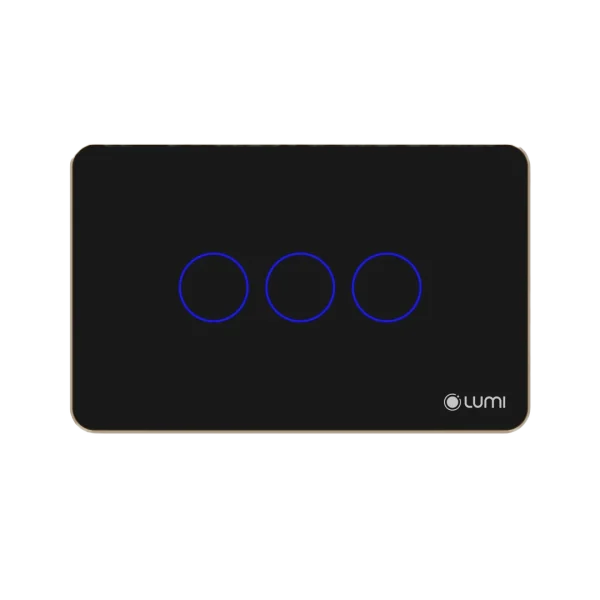


 lumi cung cấp


